Two ways to get back what's outside the frame
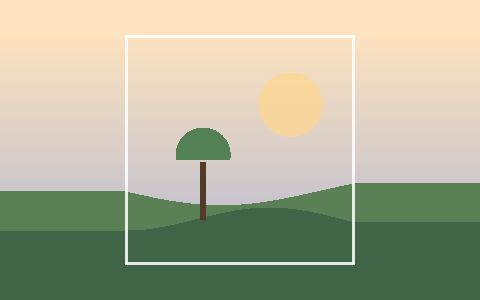
Uncropping is the opposite of cropping: instead of cutting the frame smaller, this makes it bigger and fills the space the camera or an earlier crop left out. There are two honest ways to do that, and this tool does both.
The instant fills build the new border from the photo itself — continuing the outermost pixels, mirroring the scene, or laying a soft blurred copy behind it. They need no download and finish the moment you drop a picture. The edge painter goes further, continuing the real scene outward, and is an optional one-time download you turn on only when you want it.
Grow by a factor, a shape or a margin
Pick whichever matches what you're after. Every mode keeps the whole photo — nothing is ever cut to reach the new size.
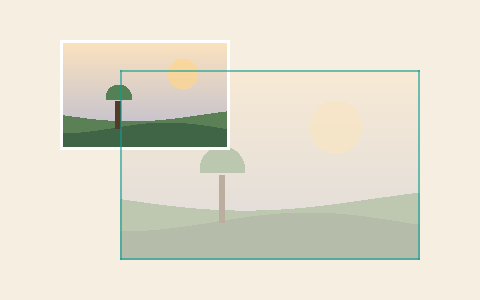
- Zoom out — the whole frame grows around your photo by a factor you set.
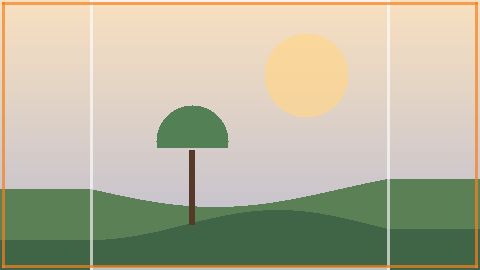
- Reframe — reach 1:1, 4:3, 3:2, 16:9, 4:5 or 9:16 by extending only the short side.
- Add margin — even breathing room on every side, for a print border or a logo backdrop.
What it can and can't do
The new edges are built from what surrounds them, so plain backgrounds — sky, wall, grass, water, a blurred background — come back cleanly. A person, sign or object that was cropped away cannot come back this way: none of it is in the file to rebuild. For that, the file inspector reads what a cropped file still carries.
Questions
Does my photo get uploaded?
No. The picture is read, grown and encoded by code running in this browser tab. It is never sent to a server — there is no server to send it to. The only download that ever happens is the optional edge-painter model, which travels one way, from our model file server to you.
Is it really free?
Yes, every mode and every download. There is no account, no watermark and no sign-up.
What's the difference between the instant fill and the AI edge painter?
The instant fills build the border from your photo's own pixels and run immediately. The edge painter is a neural model that continues the scene; it is a one-time download and runs on your device, best on plain backgrounds.
Will it reduce my photo's quality?
The original pixels are kept exactly and drawn on top of the new area, so the part that was already there is untouched. Only the newly built border is generated.
Which formats can I open and save?
Open PNG, JPEG or WebP; save as PNG, JPG or WebP. PNG keeps the sharpest edges; JPG makes the smallest file.